Introduction
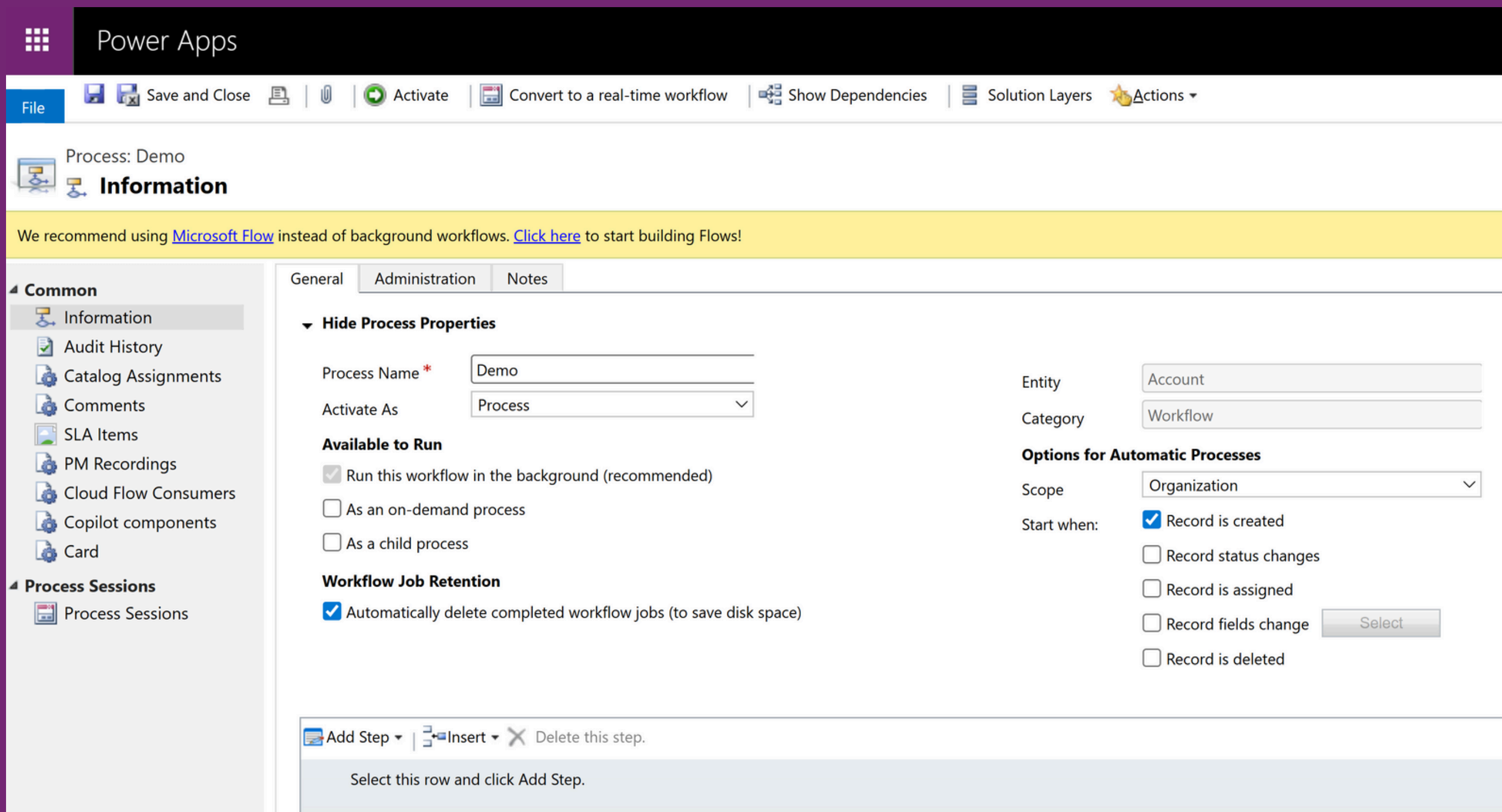
In most organizations I work with, I see the same manual routines every day: emails forwarded by hand, approval processes running through personal messages, and data copied back and forth between Excel spreadsheets, SharePoint lists, and various Microsoft 365 applications. What looks like ordinary office work at first glance turns out, on closer inspection, to be a collection of repetitive, time-consuming tasks that are perfect candidates for automation.
These manual processes share common traits: they follow clear, predictable rules, they occur regularly, and they tie up valuable work time. This is exactly where Power Automate shows its strengths. After several years of hands-on work with the platform, I can say this: Power Automate is far more than a tool for simple workflows. It's an underrated but powerful building block for automating everyday business processes.
What is Power Automate?
Power Automate is a cloud-based automation platform built on a simple but powerful principle: event-driven automation. A trigger detects a specific event and then kicks off a series of actions. This trigger-action model is the foundation of every flow, which is what automations in Power Automate are called.
Technically, Power Automate is an Integration Platform as a Service (iPaaS) with hundreds of pre-built connectors. These connectors enable connections to Microsoft 365 services, external SaaS applications, and even on-premises systems. As part of the Power Platform, it's closely integrated with Power Apps, Power BI, and Dataverse, but it also works perfectly well on its own.
What sets Power Automate apart from classic workflow engines is its low barrier to entry. It requires no programming knowledge and uses a visual, drag-and-drop interface. Even so, it packs considerable functionality under the hood, including conditional logic, loops, error handling, and even the ability to integrate custom code snippets.
Understanding the Power Automate interface
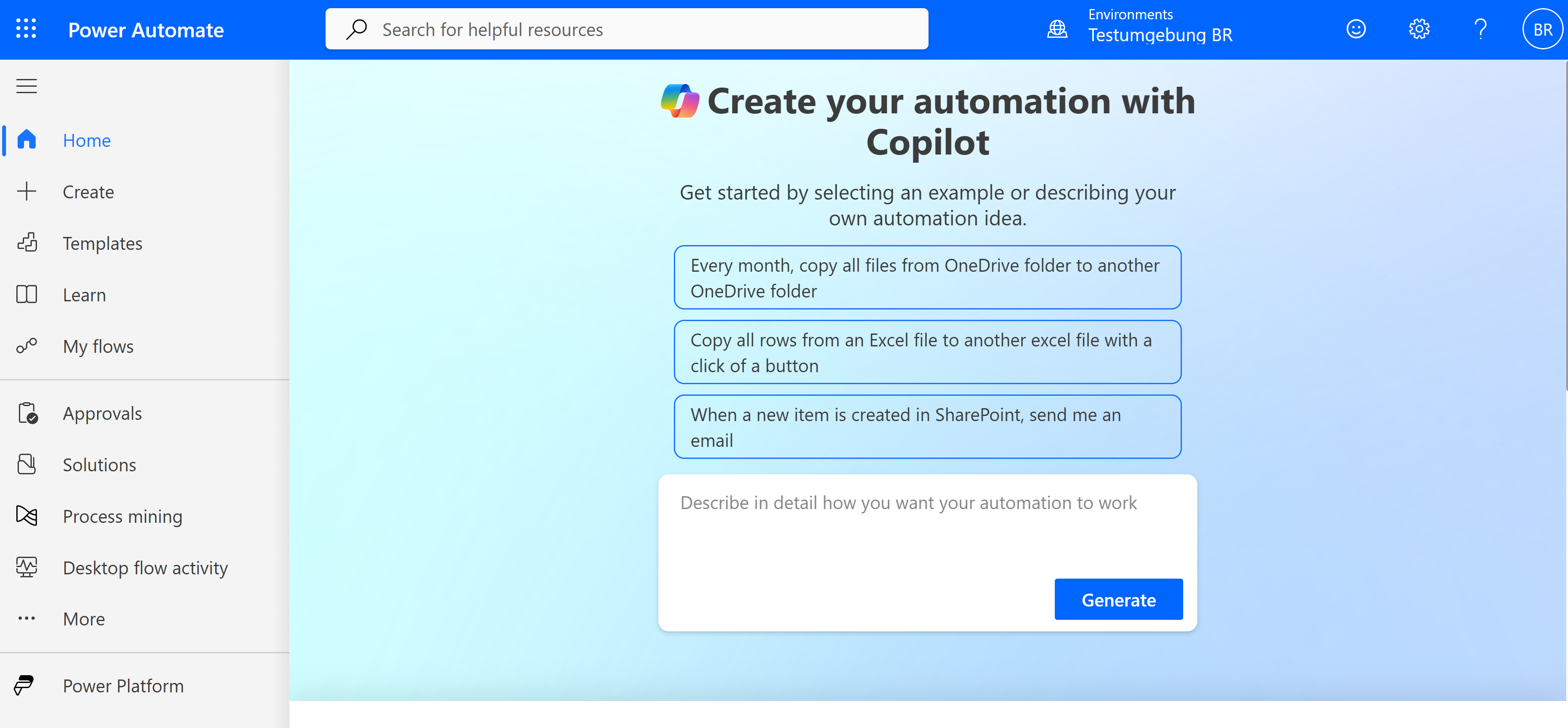
When a new user first opens Power Automate, they're greeted by a clear, well-organized dashboard. The main navigation menu on the left contains the key areas: "My Flows" shows all the automations you've created, "Templates" offers ready-made solutions for common scenarios, and "Connectors" gives an overview of the available integrations.
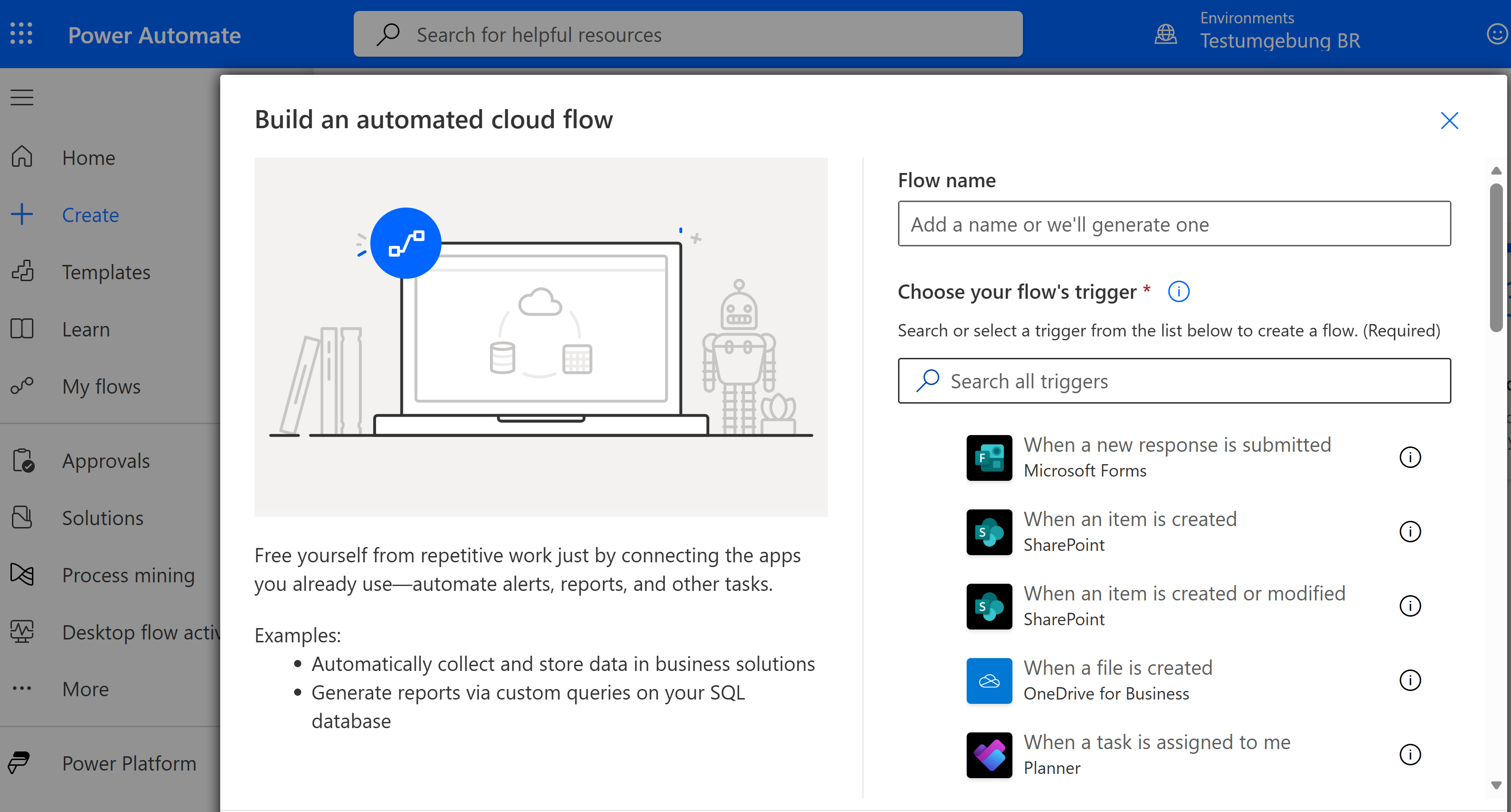
Creating a new flow starts with choosing the trigger type. This is where the versatility of the platform already becomes apparent: triggers range from simple time-based schedules to incoming emails to complex SharePoint events or HTTP requests. This variety matters because it determines which automation scenarios are possible in the first place.
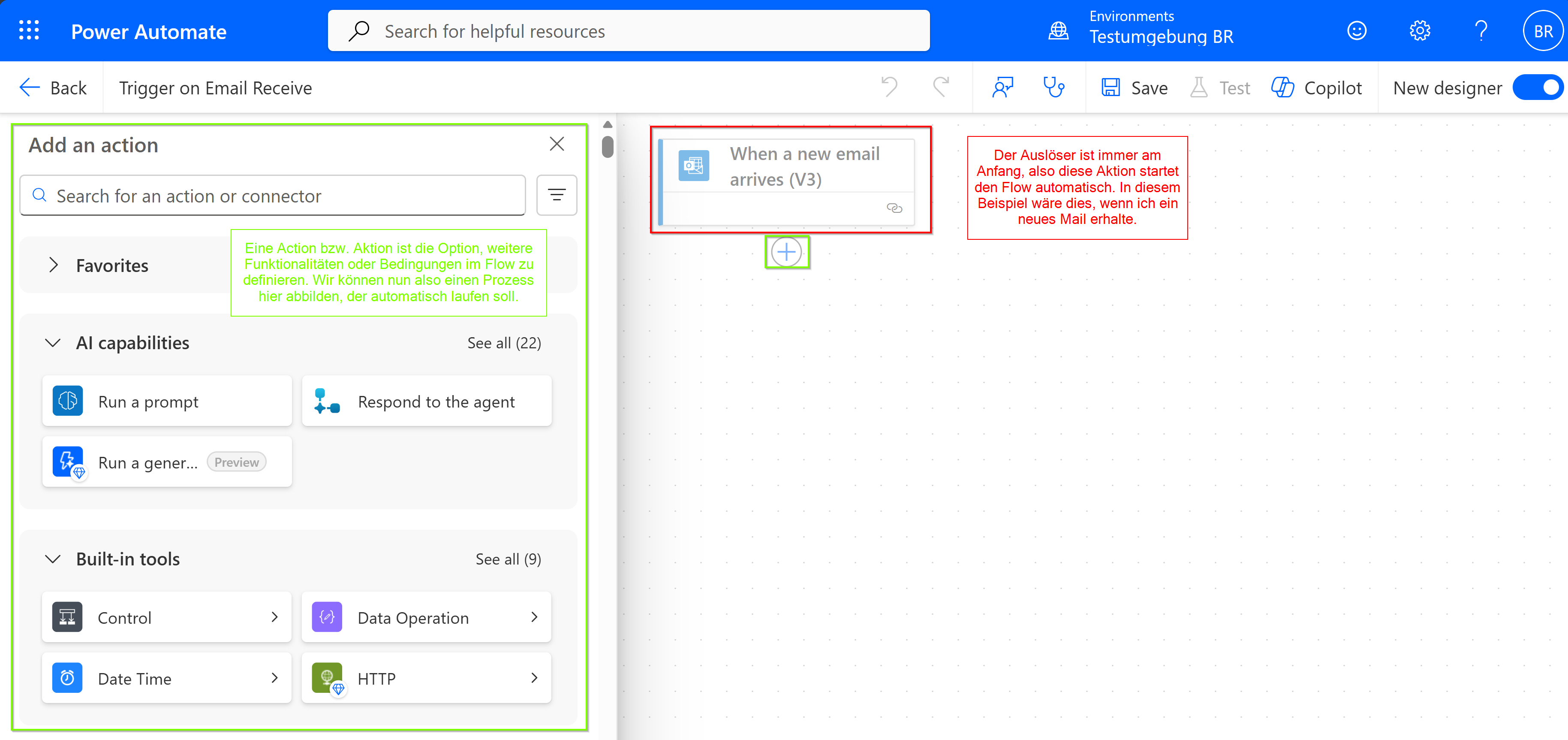
The Flow Designer itself is the heart of the platform. This is where triggers and actions are visually linked together, similar to a flowchart. Every step can be configured, and dynamic content from previous steps can be seamlessly inserted into subsequent actions. This visual representation makes complex business logic easy to follow and maintain.
First practical use cases
In practice, most organizations start with approval workflows. A typical scenario: when a new document is uploaded to a specific SharePoint library, an approval request is automatically sent to the responsible manager. Once approved, the document is moved to a final folder and everyone involved receives a notification. What used to require email ping-pong and manual file moves now runs entirely on its own.
Notification workflows are another common entry point. Teams notifications for important SharePoint updates, email alerts for critical errors in other systems, or automatic reminders ahead of due dates. These scenarios are valuable because they shorten response times and make sure important information doesn't get overlooked.
Data transfer between Microsoft 365 services shows a different strength of Power Automate. New Planner tasks can be automatically logged in Excel spreadsheets, form responses from Microsoft Forms land in structured SharePoint lists, and Power BI datasets are regularly refreshed with new data from various sources. These seemingly simple data movements eliminate manual copy-pasting and significantly reduce sources of error.
Time-based automations round out the picture. Weekly reports that are generated and sent automatically, routine data cleanup in SharePoint lists, or automatic archiving of old files. These scenarios are especially valuable because they automate tasks that would otherwise easily be forgotten.
Why Power Automate works well in practice
The low barrier to entry is Power Automate's biggest advantage. Business users can build simple automations without needing IT support. This democratization of automation means process improvements happen right where the actual pain points are - with the end users themselves.
The visual design makes complex business logic understandable. While traditional automation tools often require programming or scripting knowledge, in Power Automate anyone can follow what a flow does. That transparency is crucial for both adoption and maintainability.
Deep integration with Microsoft 365 is another practical advantage. Authentication, permissions, and data formats work seamlessly across the different Microsoft services. What often requires complex configuration with external automation tools works out of the box in Power Automate.
In my experience, one particularly valuable aspect is that Power Automate complements existing IT infrastructure instead of replacing it. Flows can be rolled out incrementally, without major architectural changes. This evolutionary approach reduces resistance and enables quick wins.
Common pitfalls and limitations
Power Automate is no silver bullet. In practice, there are clear limits that need to be named honestly. Maintainability quickly becomes an issue with complex flows. What starts out as a simple automation can grow into a tangled web of nested conditions and loops.
Error handling is another challenge. While Power Automate offers basic retry mechanisms, robust error-handling strategies require careful planning. Flows can fail, and without proper monitoring and alerting in place, such failures often go unnoticed.
Governance is an underrated topic. In organizations where Power Automate is widely adopted, hundreds of flows can appear quickly, often with no central overview. Who's responsible for which flow? What happens when the person who built it leaves the company? These are organizational questions that need organizational answers, not technical ones.
Performance limits can become a problem with large-scale automations. Power Automate has throughput and execution limits that can be reached with large data volumes or frequent triggers. For high-frequency or data-intensive processes, other solutions may be a better fit.
Where Power Automate fits best
Power Automate shines with business workflows built on clear, rule-based decisions. Approval processes, notification workflows, and simple data integration are ideal use cases. The platform is especially strong when it comes to connecting existing Microsoft 365 services with each other while incorporating human interaction.
Operational automation is another area where Power Automate excels. Recurring reports, data cleanup, automatic archiving, and similar routine tasks can be automated elegantly. This is where the platform's strengths in time-based triggers and reliable execution really pay off.
Power Automate is less suited to highly complex business logic, performance-critical processes, or scenarios that require heavy data processing. In those cases, specialized tools or custom-built solutions are often the better choice.
In my experience, Power Automate's sweet spot is what I'd call "mid-tier automation" - more complex than simple IFTTT-style scenarios, but less complex than full-blown Business Process Management systems. That's where the balance between functionality and usability really lands.
Conclusion
Power Automate is a valuable tool for automating everyday business processes, but it's important to assess it realistically. The platform shines through its low barrier to entry, visual clarity, and deep Microsoft 365 integration. It lets business users build their own automations and see immediate productivity gains.
At the same time, Power Automate has clear limits when it comes to complexity, performance, and enterprise governance. Understanding these limits is key to successful implementations. The platform is a powerful tool, but it's no substitute for thoughtful process design and organizational policy.
My advice: start with small, concrete problems in your day-to-day work. Identify repetitive tasks that follow clear rules, and experiment with simple automations. Power Automate shows its strengths best when it's applied step by step and with purpose, to solve real pain points.
Your Experience?
Do you have questions, or have you already worked with Power Automate yourself? Which processes have you automated, and what were your learnings or challenges? I'd love to hear from you - feel free to reach out via the contact form or on LinkedIn.

Questions or experiences of your own on this topic? I'd love to hear from you - via the contact form or on LinkedIn.