This is my first article of this kind, and I want to use it to share some personal thoughts and hands-on experiences with Power Apps Code Apps. This isn't a feature announcement or a polished demo — it's about what actually happens once you try to fit this approach into a real scenario.
I've spent a fair amount of my free time experimenting with Code Apps, and I've come to appreciate the concept as a genuinely powerful way of building apps. What makes it interesting to me isn't the technology on its own, but the fact that it finally creates a shared space between classic software developers and Power Platform teams.

A new common ground for developers and Power Platform teams
For years, discussions about the strengths and limits of low-code ended in one of three places whenever a genuinely individual requirement showed up: a custom-built application outside the Power Platform, a Canvas App that never quite met professional software development standards, or a model-driven app that couldn't deliver the specific UI that was actually needed.
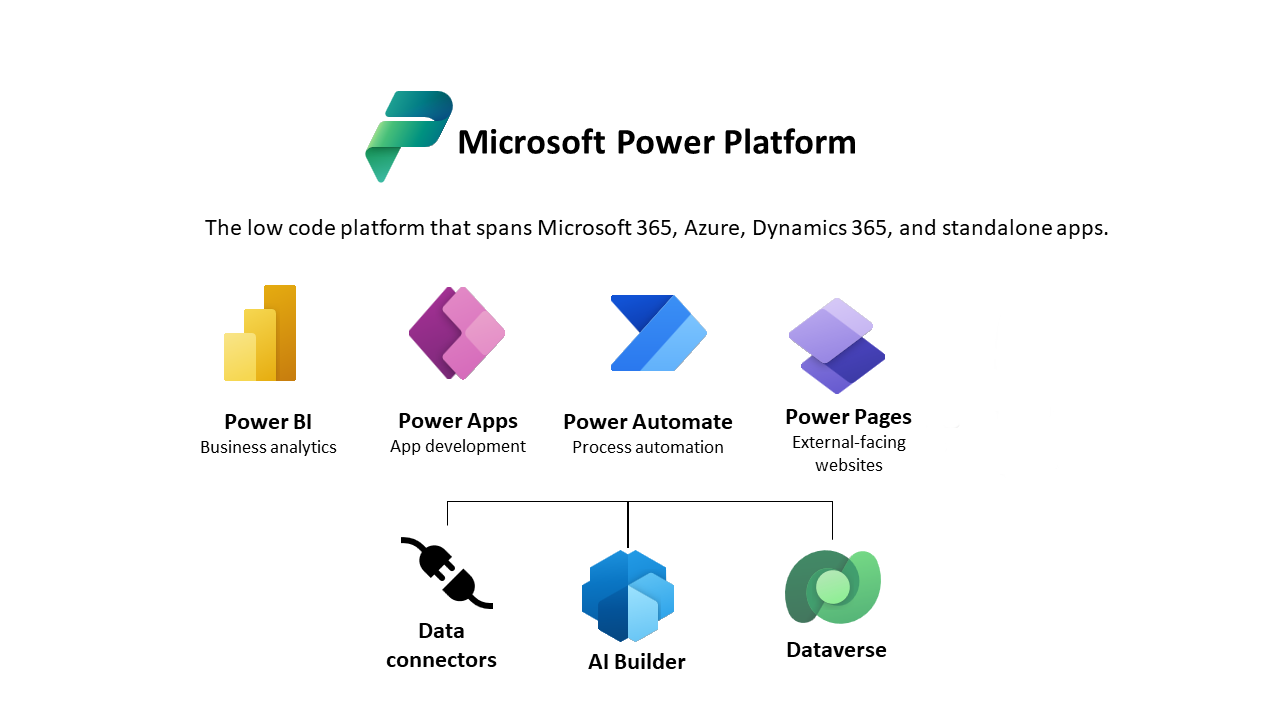
Power Apps Code Apps change that starting point. Professional developers can work with the technologies they already know — React, TypeScript — while the Power Platform team keeps hosting, Dataverse, ALM, governance and security in native platform capabilities.
To be clear: this is not about replacing low-code. It extends the platform. And I'd argue that production-grade scenarios still need skilled developers who understand code security and maintainability. In that sense, Code Apps are a tool for professional developers rather than primarily a citizen developer feature.
What I built: a capacity planner
To get a realistic feel for this, I needed a use case that wasn't a toy. I built a capacity planning app: people, projects, teams, roles and time off on the data management side, and allocations, demand and an overview on the planning side.
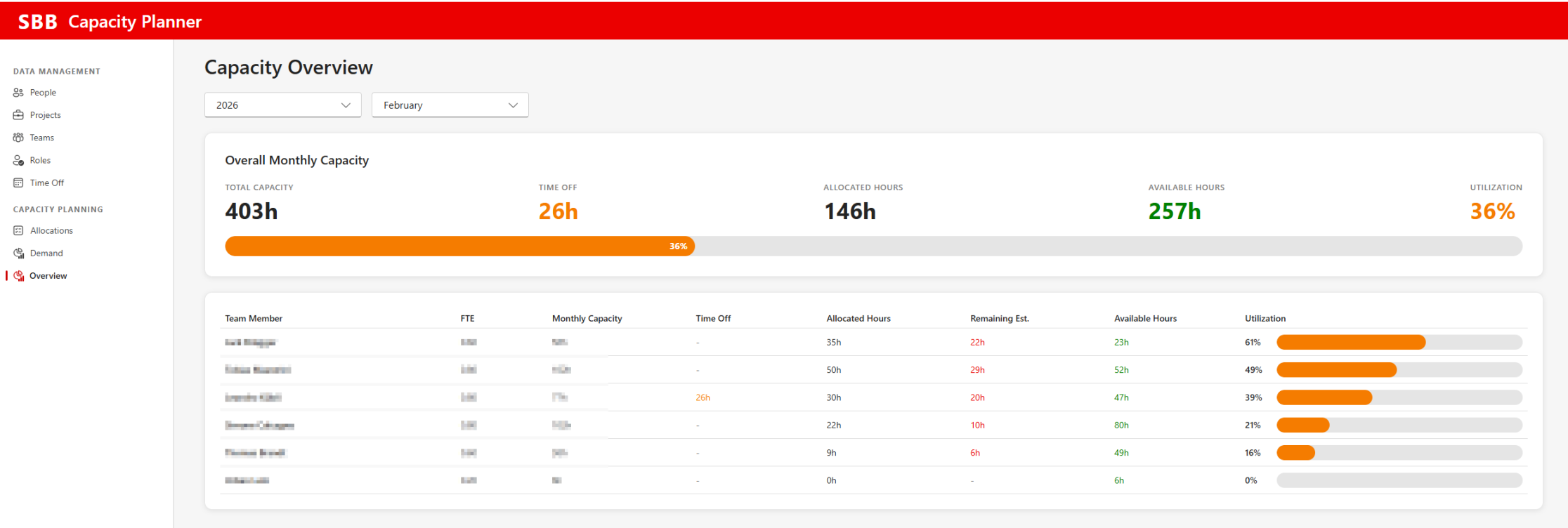
The overview page aggregates the numbers that actually matter in a planning conversation — total capacity, time off, allocated hours, available hours and a utilization percentage — and then breaks the same figures down per team member, including FTE, monthly capacity and remaining estimate.
This is exactly the kind of screen that used to be painful. It's dense, it's tabular, it needs computed columns and progress indicators, and it has to stay readable. With React and TypeScript this is unremarkable work. That's the point.
What happens when a Power Apps Code App is created?
Everything should live inside a solution. Solutions remain the backbone of ALM in the Power Platform, and a Code App is no exception. The relevant command for pushing a Code App into a solution is:
pac code push -s <solution-name>This pushes the Code App into the specified solution and makes it a first-class solution component.
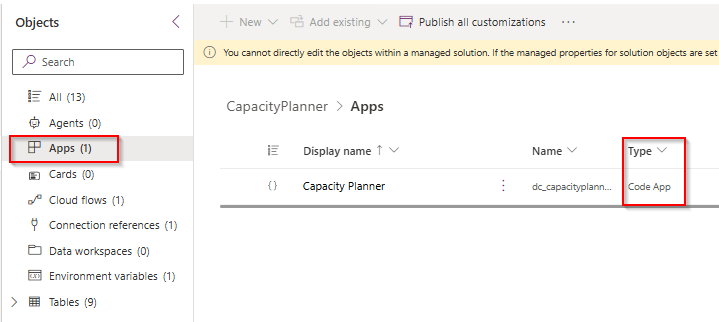
What I like about this view is how unremarkable it looks. The Code App sits in the solution next to nine Dataverse tables, a cloud flow, a connection reference and an environment variable. It's just another component with a type — which is exactly what you want if the app is ever going to move through environments in a controlled way.
Enabling Code Apps per environment
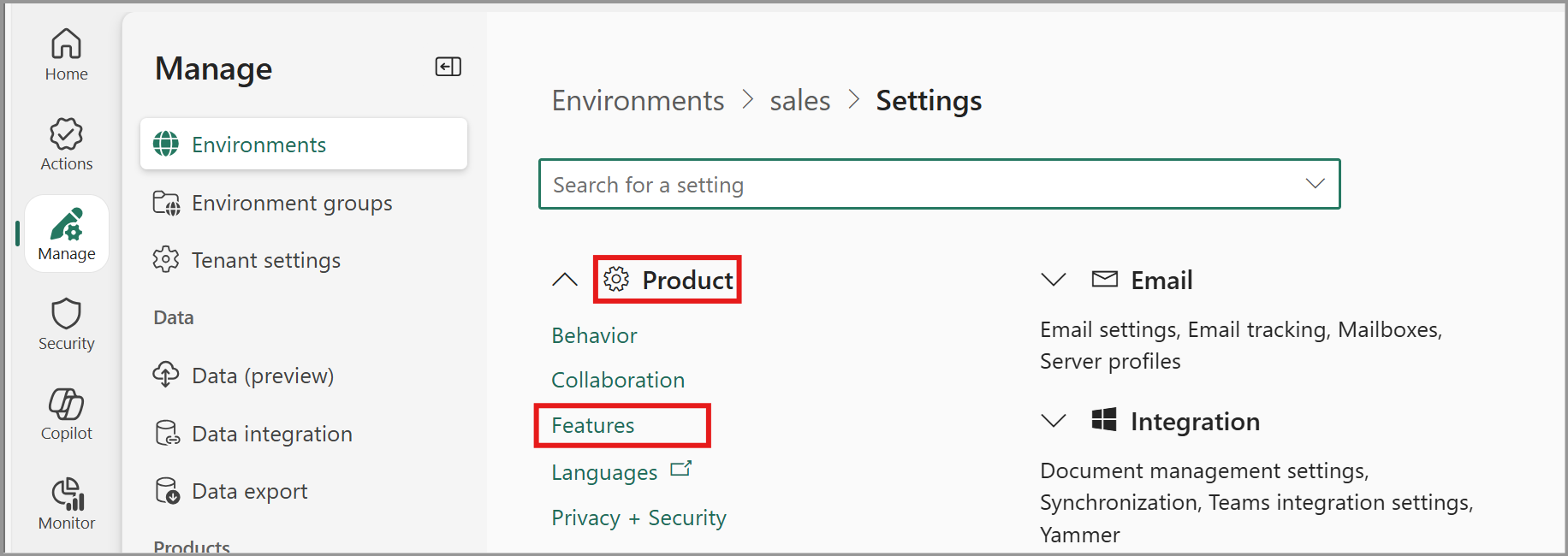
If you run into errors while pushing Code Apps, the cause is very often that the required setting simply isn't enabled in the target environment. You'll find it in the Power Platform Admin Center under Environments → your environment → Settings → Product → Features.
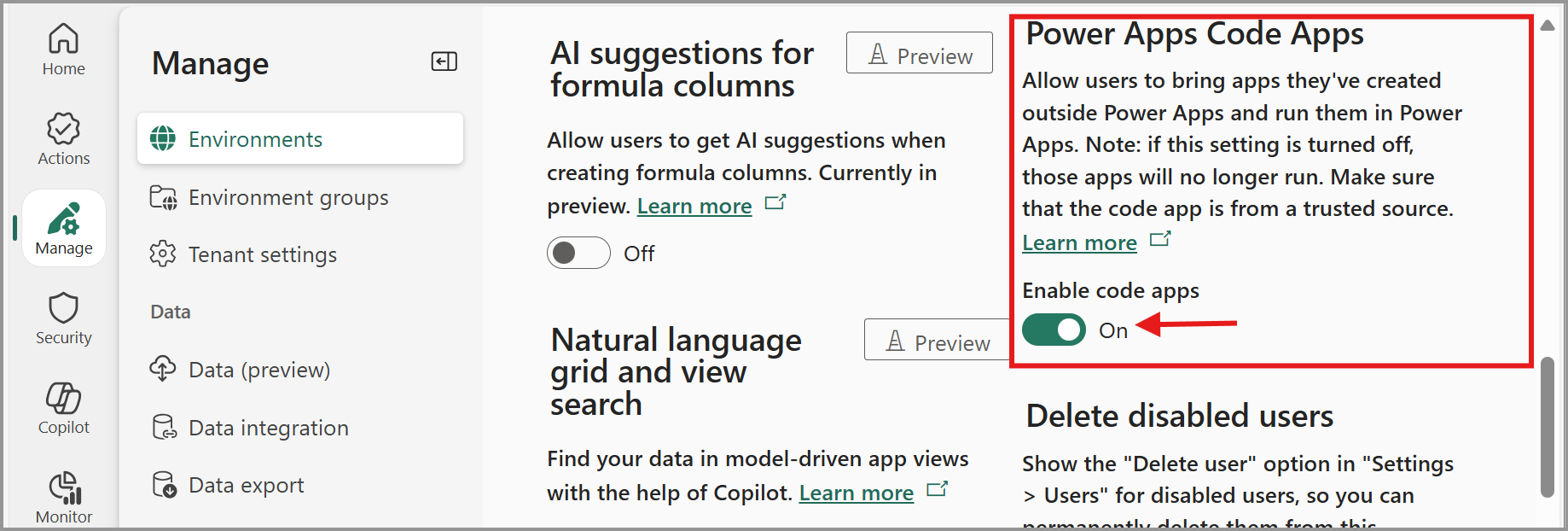
Two things are worth reading carefully here. First, every environment involved in your ALM process needs this enabled — in a standard enterprise setup that means DEV, TEST and PROD, not just the one you happen to be developing in. Second, the setting is a kill switch: if it's turned off, apps that were running stop running. That's a governance lever, and it's worth knowing it exists before someone flips it.
Once the setting is in place, Code Apps behave like any other native app type within the platform. It's a small detail, but it's the kind of thing that costs you an afternoon if you don't know to look for it.
Administration, inventory and governance
Recent improvements in the Power Platform Admin Center mean administrators can see when Code Apps are created. They show up in the maker inventory as a dedicated item type and can be filtered accordingly.
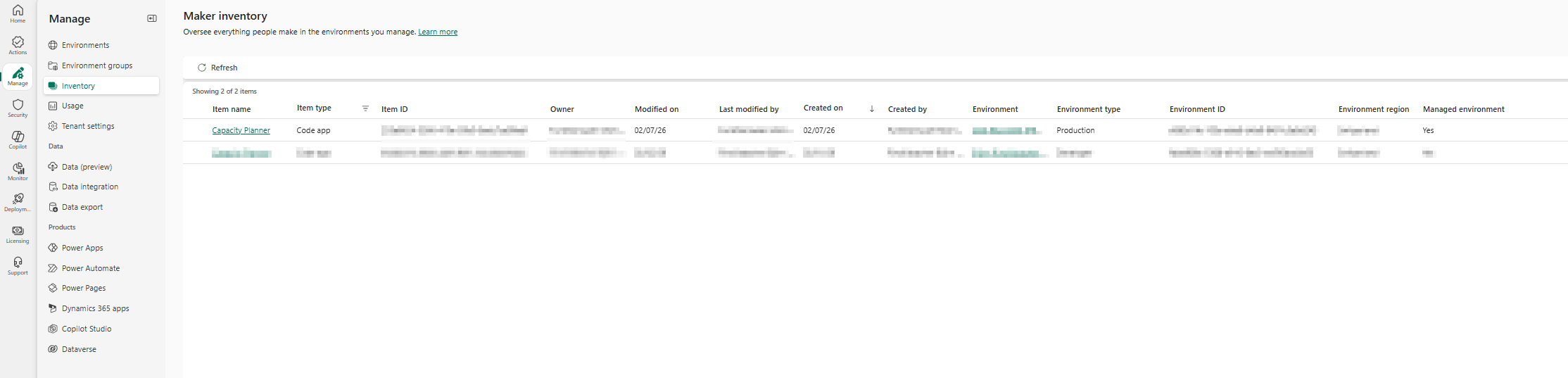
In practice that gives you three things: visibility into where Code Apps are being used, control over who is allowed to create them, and consistent governance alongside Canvas Apps and model-driven apps. Code Apps fit into the governance model you already have rather than forcing you to invent a new one — which, from a CoE perspective, is the single most important property.
Deploying to other environments
Once the app is part of a solution, the normal ALM process takes over. In my capacity planning case the solution contained the Code App, the Dataverse tables, a cloud flow and environment variables — so there was nothing special left to handle.
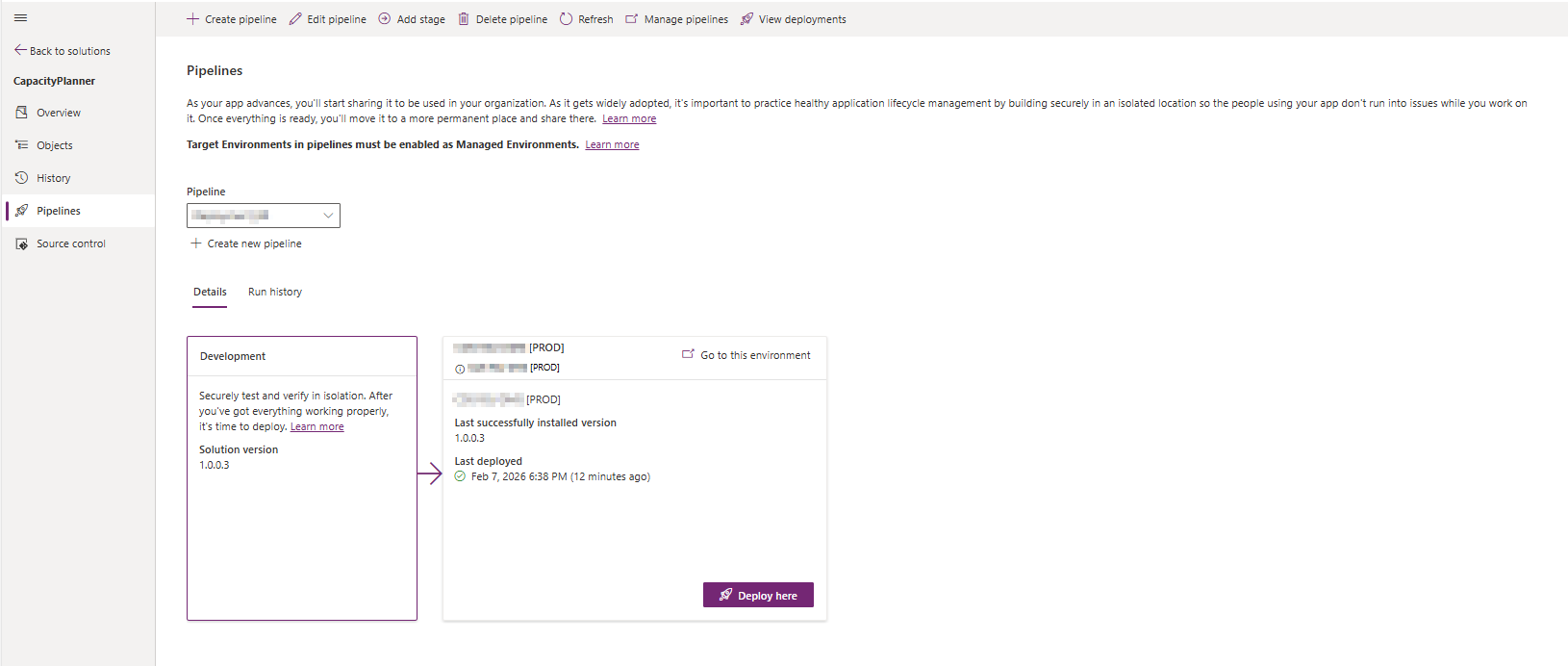
Deployment moved the entire solution from development to production exactly like any other Power Platform solution, versioned and tracked. Code Apps really do behave like other app types here: they're solution components that can be stored, deployed and managed consistently. After deployment, the app simply opens and runs in the target environment.
Closing thoughts
My main goal here was to share a personal perspective on why Power Apps Code Apps are genuinely enjoyable to explore — not to present final answers. There's still a lot to figure out, and plenty of it will depend on your own platform setup and team.
So I'm curious: would you consider Code Apps for your scenarios, or would you rather watch a while longer and see how the technology evolves? I'm always happy to discuss how this kind of technology gets integrated into companies or customer scenarios.
Your Experience?
Do you have questions, or have you already built something with Code Apps? What were your learnings, stumbling blocks, or aha moments? I'd love to hear from you — feel free to reach out via the contact form or on LinkedIn.
This article was originally published on LinkedIn ↗.

Questions or experiences of your own on this topic? I'd love to hear from you — via the contact form or on LinkedIn.